April SOLARMAN Product Update Notes

April SOLARMAN Product Update Notes

Product Name:SOLARMAN Help Center Module Available

Release Date: April 16

Distribution Channels

SOLARMAN Smart Web+App

SOLARMAN Business Web+App


SOLARMAN Business

SOLARMAN Business App Path: Me > Help and Feedback (top right corner)


SOLARMAN Business Web Path: Question mark in the upper-right corner -- Help Center

SOLARMAN Smart

SOLARMAN Smart App Path: Menu > Help and Feedback (top right corner)

SOLARMAN Smart Web Path: Name in the top-right corner -- Help Center

Product Name: Optimization of Plant Alarm Logic

Release Date: May 9

Distribution Channels

SOLARMAN Business Web

SOLARMAN Business App


Current Situation

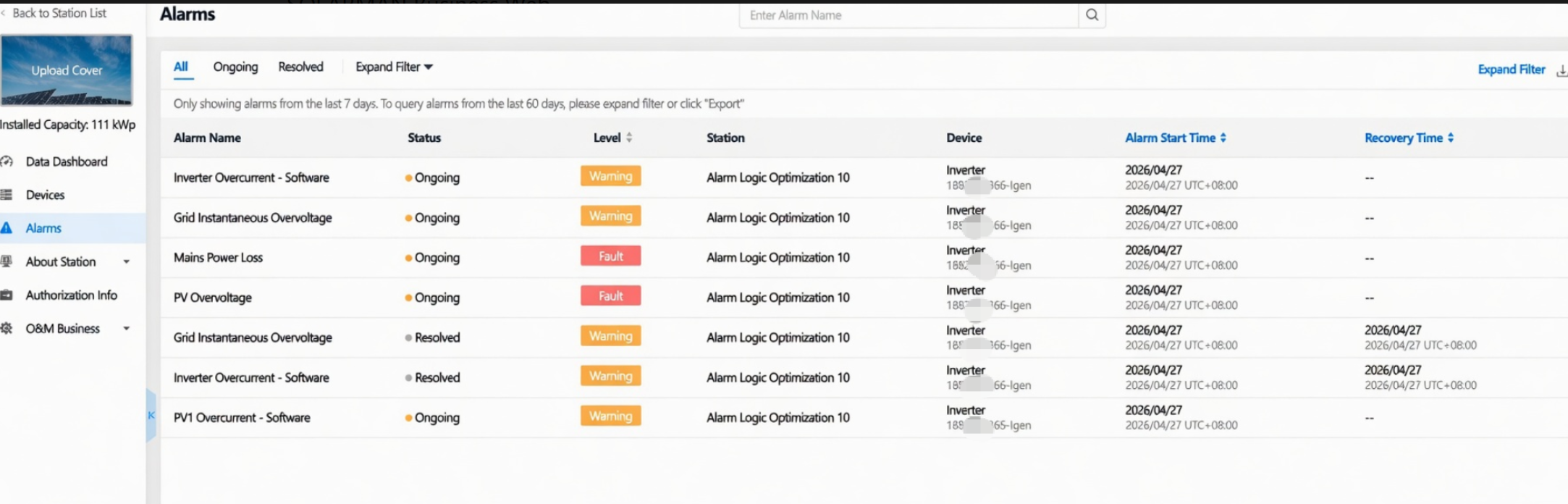
When a device under the “plant” directory is deleted, its alarm messages are not deleted and remain visible.
After optimization

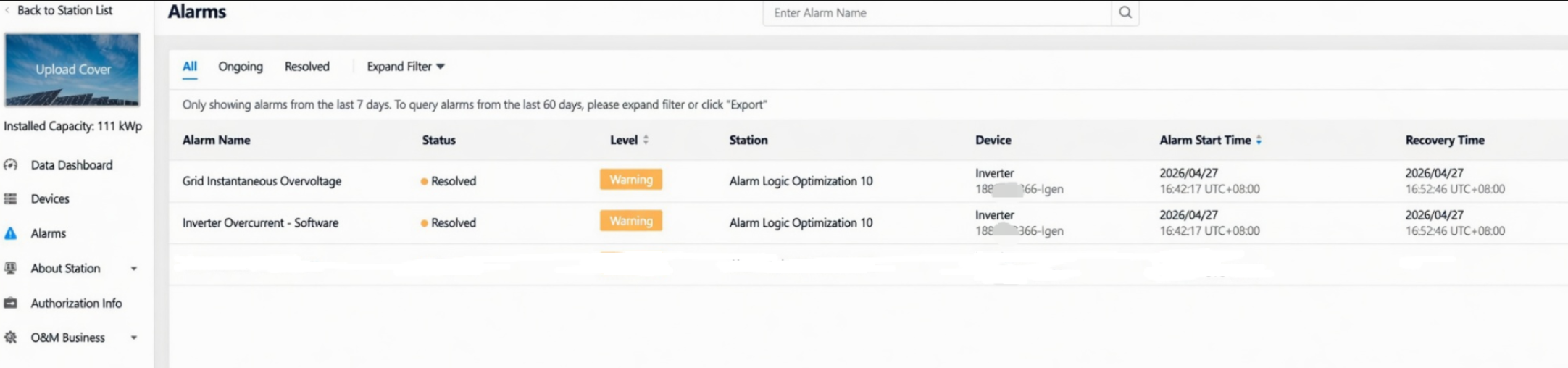
1.When a device under a plant is deleted, removing any “Ongoing” alarm messages related to that device from the plant's list, future alarm messages for that device will no longer appear in the plant's alarm list.
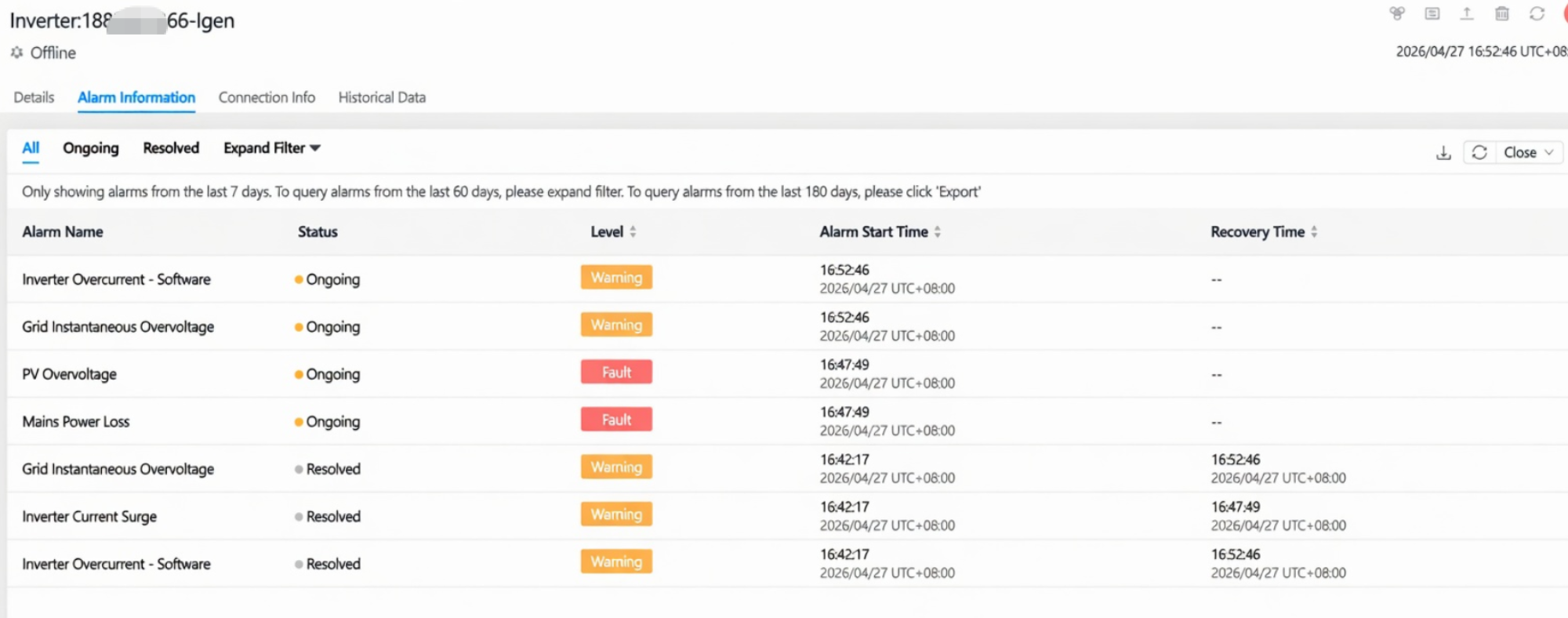
2.Alarm messages for that device that were previously in the “Resolved” status are not deleted and remain intact. All alarm messages (including historical, current, and future) can still be viewed normally from the device’s own alarm interface.

    • Related Articles

    • Home Energy Management System Product Installation Manual and FAQ

      Announcement This year, the platform has launched several Home Energy Management System (HEMS) products. To facilitate user access, installation and use, we have compiled and consolidated the official installation manuals and frequently asked ...
    • Product Update Overview--SOLARMAN Smart Flow Map Now Supports Charging Station Icons

      Related Platforms: SOLARMAN Smart Web, SOLARMAN Smart App Release Date: April 9, 2026 Description: When a storage plant includes charging station devices, if the charging station is in operation, SOLARMAN Smart Web and SOLARMAN Smart App will display ...
    • April Hardware Product FAQ

      Question 1:How to clear or suppress an alarm There are two ways to clear an alert Plan 1 – Address the cause of the alert: Identify the specific cause of the alert, take the necessary corrective actions, and clear the alert once the issue is resolved ...
    • Product Update Overview--Smart Customer Service

      To help users resolve issues more quickly on their own, a new “Help & Feedback” feature has been launched in both the “SOLARMAN Business” and “SOLARMAN Smart” apps. Core Objective: Enable users to quickly find answers to common questions through ...
    • SOLARMAN Academy Is Now Live!

      Click here to visit the channel and watch videos on the official SOLARMAN YouTube channel to quickly master SOLARMAN product usage tips: (We recommend subscribing to the channel and turning on notifications to receive the latest course updates ...